Your timing.
Your control.
Choose a timer, set an end time, or stay awake until you stop. Start a session and let your Mac get on with the work.
See the countdown in your menu bar, add 15 minutes, or end your session with a click.
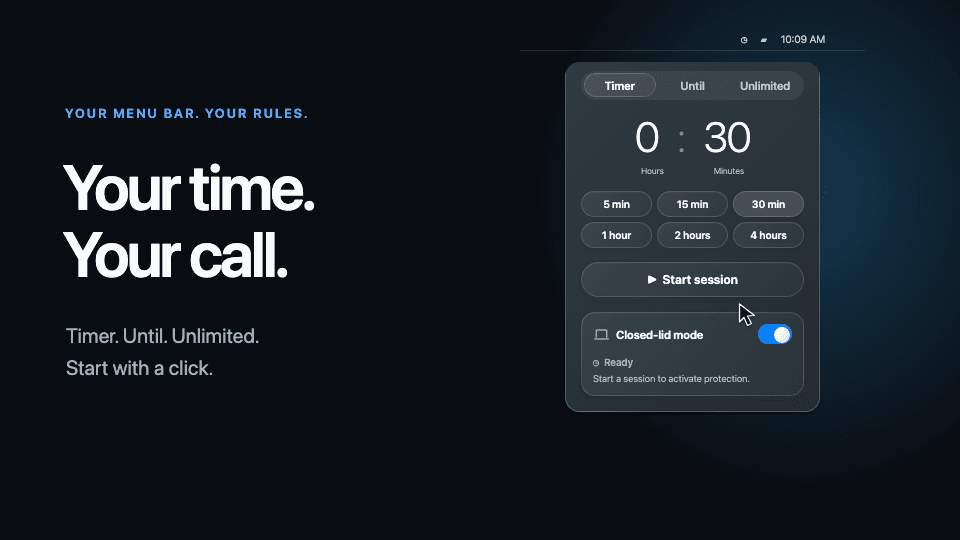
Keep downloads and long-running work moving. Timed sessions and optional closed-lid protection, right from your menu bar.
Buy once use forever · 14-day money-back guarantee
Choose a timer, set an end time, or stay awake until you stop. Start a session and let your Mac get on with the work.
See the countdown in your menu bar, add 15 minutes, or end your session with a click.
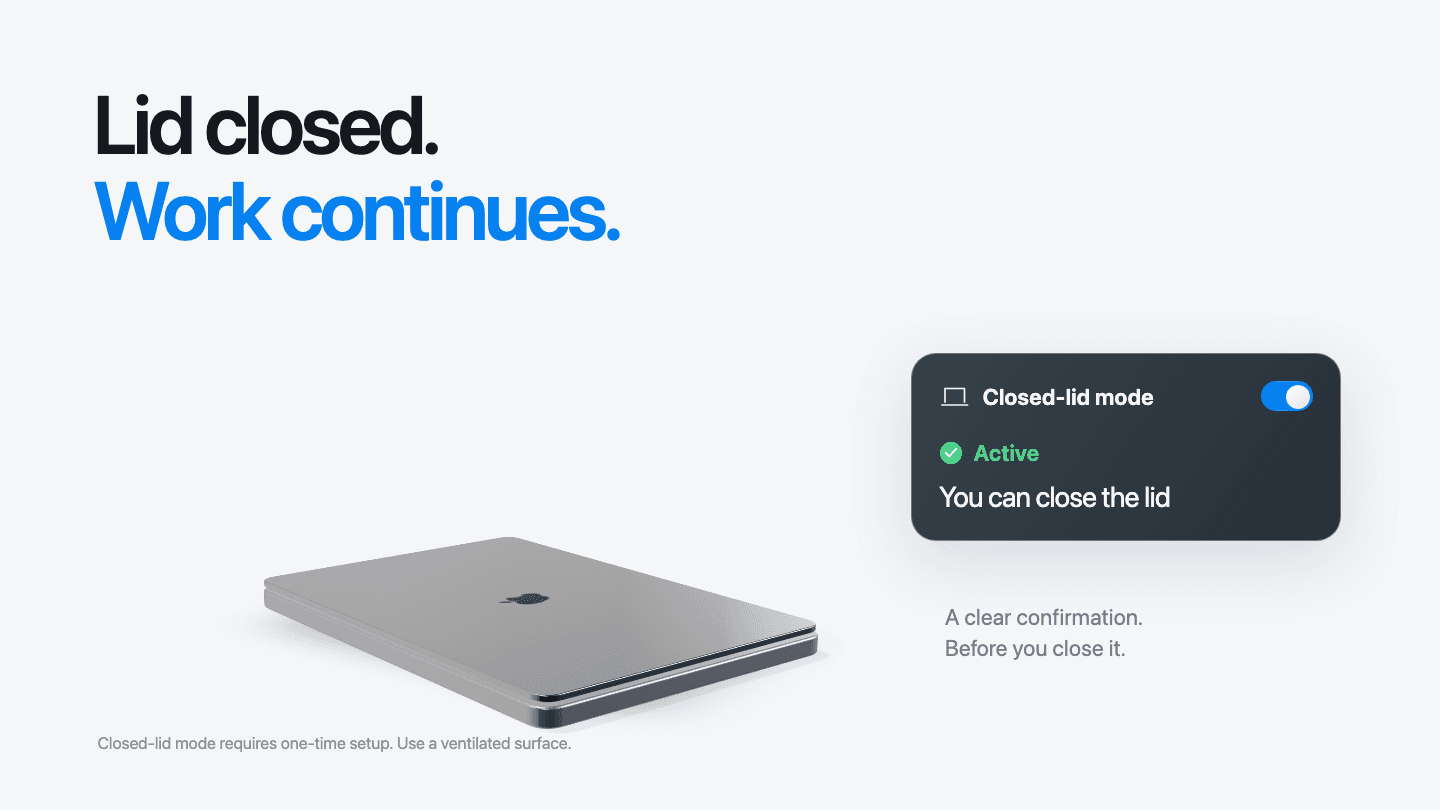
Set up the helper and enable closed-lid mode. Start a session, then wait for “Active — You can close the lid” before closing your MacBook.
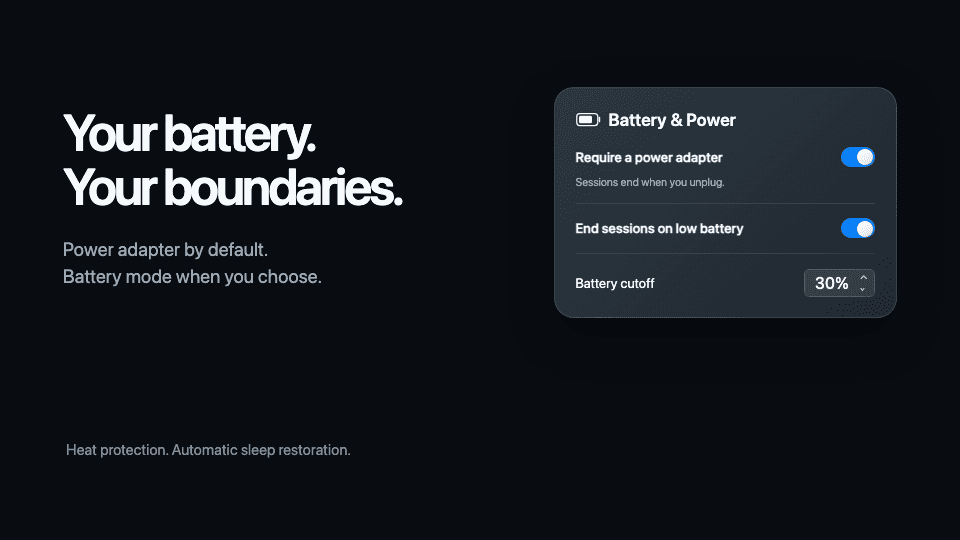
Require a charger, or allow battery use with a cutoff you choose. Optional battery time limits and built-in safeguards keep you in control.
Personal stays personal.Your preferences stay on your Mac.
Always a click away.Open everything from your menu bar.
Made for your Mac.Apple silicon and Intel. macOS 14 or later.
One small purchase. A Mac that stays awake.
Every feature. Every update. No subscription.
USD
One-time purchase
Keep work moving, on up to three Macs.
14-day money-back guarantee
macOS 14 or later. Apple silicon and Intel.
Need a refund? Get in touch.
Click the sun icon in your menu bar. Choose Timer, Until, or Unlimited, then select Start session. Your Mac stays awake while the session is active, subject to your power and battery settings. Closing the popover leaves it running; quitting Untiring ends the session.
Yes. Set a timer from one minute to 24 hours, choose an end time within the next 24 hours, or use Unlimited until you stop it. You can add 15 minutes to a timed session, up to the limit. Explicit system sleep ends the session; it does not restart on wake.
Yes, with closed-lid mode set up. Install and approve the helper in Settings → Closed Lid, enable the mode, and start a session. Close the lid only after “Active — You can close the lid” appears. Protection has a four-hour continuous limit and stops if power, battery, thermal, or connection safeguards require it. Keep your Mac on a hard, ventilated surface.
Untiring supports Apple silicon and Intel Macs running macOS 14 or later. It lives in the menu bar, so you do not need a Mac with a notch. Closed-lid mode is for MacBooks and requires the optional helper.
A power adapter is required by default, so unplugging ends the session. You can turn that requirement off in Settings → General. Closed-lid use on battery also requires an explicit opt-in in Closed Lid settings. Choose a battery cutoff and an optional battery time limit; thermal and overall duration safeguards still apply. Reconnecting power does not restart a stopped session.
Keep-awake sessions run locally. After a successful license check, Untiring can work offline for up to seven days before it needs to verify again. Activation, license removal, and update checks need internet access. Your preferences stay on your Mac, and your license is stored in macOS Keychain.
Every Untiring feature, lifetime updates, and activation on up to 3 Macs. You pay once, with no subscription. Your purchase includes a 14-day money-back guarantee.
The installer is free to download, but you need a paid license to use Untiring. After checkout, find your key in your Polar purchase confirmation and enter it in the menu-bar popover. There is no recurring payment.
Yes. Open Untiring Settings → License on the current Mac and choose Remove license. Once removal succeeds, activate your key on the new Mac. An internet connection is required, and the 3-Mac activation limit still applies.
If Untiring isn’t right for you, contact support within 14 days of purchase to request a refund. Include the email address you used at checkout and your order reference so we can find your purchase.